
푸잉이의 기술블로그
[Day4] Certified Kubernetes Administrator (CKA) with Practice Tests 본문
[Day4] Certified Kubernetes Administrator (CKA) with Practice Tests
data고수 2023. 1. 6. 04:4936강 Services Cluster IP
-Pod를 그룹화하여 pod에 액세스할 수 있는 단일 인터페이스 (Virtual IP) 제공
-쿠버네티스 클러스터에서 쉽게 애플리케이션을 효과적으로 배포 가능
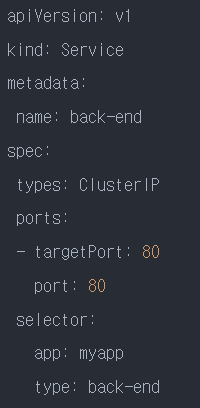
<서비스 생성>
-> kubectl create -f service-definition.yaml
<서비스 조회>
-> kubectl get services
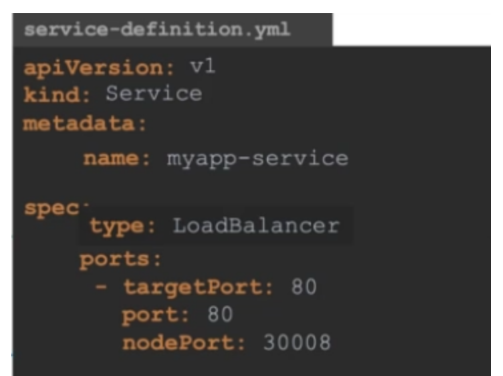
37강 Services-Load balancer
Voting application 구조
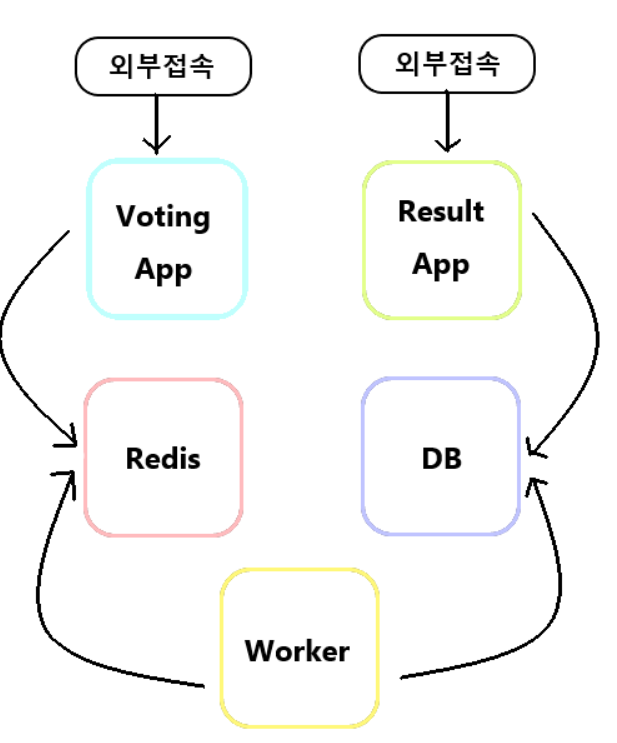
구현순서 1. 각 pod 생성 2. service (ClusterIP)생성 -레디스,DB 3. Service (NodePort) 생성-투표 앱, 결과 앱
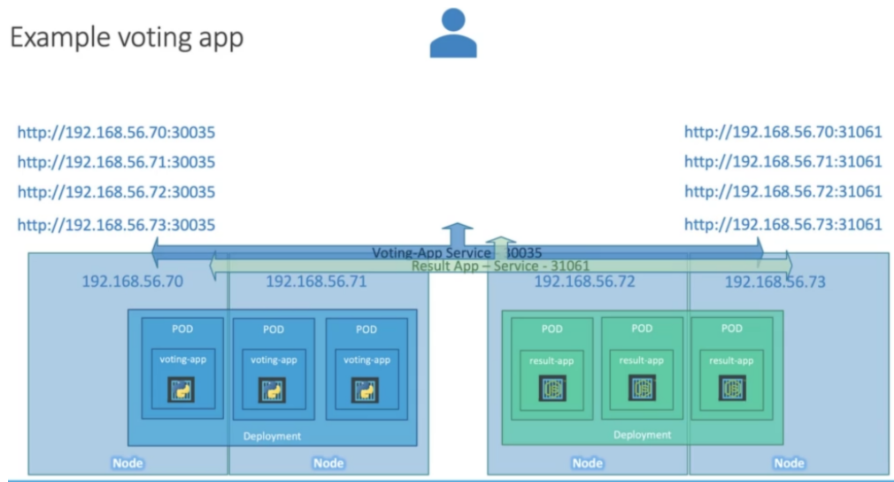
Front-end application은 voting app & result app 이 있음
pod들이 클러스터의 worker node에서 호스팅 됨
<외부 로드 밸런싱 설정>
end user가 원하는 것 -> http://eample-cote.com 과 같은 단일 url 프로그램에 액세스 하는 것
1.로드밸런서용 vm을 생성
2.로드밸런서 설치 및 구성 로드밸런서 AJ/Proxy, ngingx
3.Node에 traffic을 라우팅하도록 로드밸런서 구성
40강.Namespaces
Default namespace는 클러스터가 처음 설정될 때 자동생성
내부 목적으로 DNS 등 네트워킹 솔루션에 필요한 것으로 Namespace 생성 필요
DB 연결 시,
형식 : servicename.namespace.svc.cluster.local
<pod 조회>
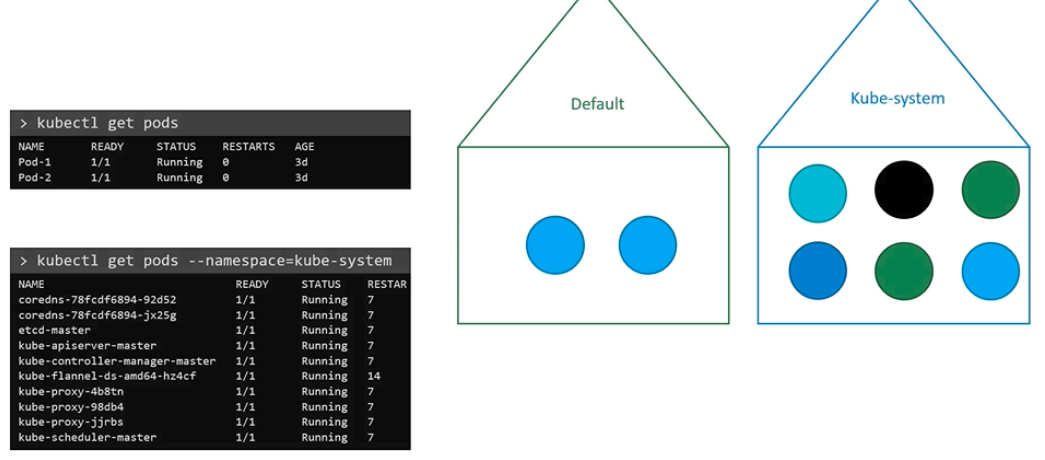
<pod 생성>
metadata section 아래 namespace : dev로 표현해도 됨

<Namespace 생성>
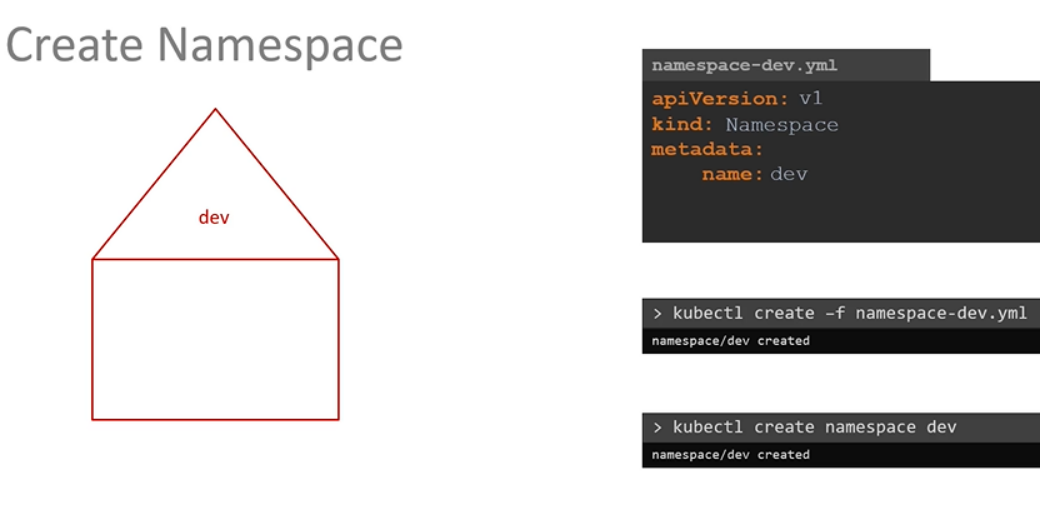
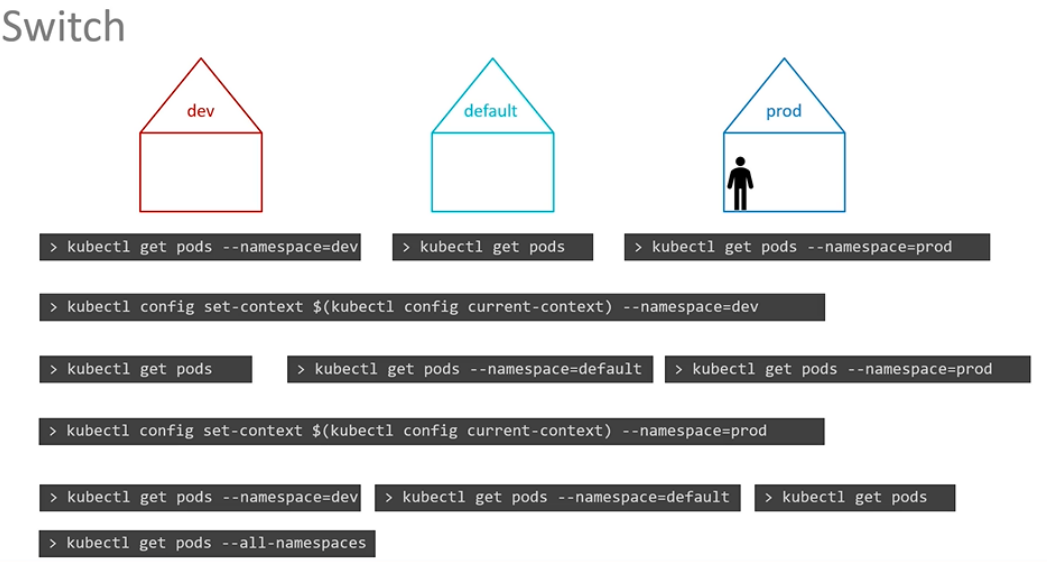
Dev namespace에 있는 리소스를 보려면 kubectl config 커맨드 사용
-> namespace 옵션 없이도 dev 환경에 있는 pod 조회 가능
모든 namespace에서 pod 확인하고 싶을 땐
-> kubectl get pods --all-namespaces
-> kubectl get pods -A
<할당량 조절>
namespace에서 리소스를 제한하려면 리소스 할당량 생성
spec에서 조정
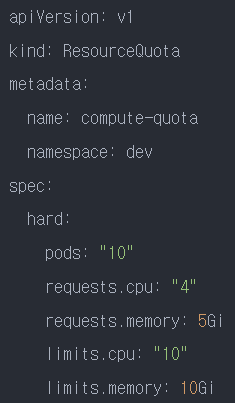
-> kubectl create -f compute-quota.yaml
43강. Imperative vs Declarative
Imperative (명령형)
'어떻게' 가는지가 중요한 방식
<Infrastructure-as-code>
- provisioning a VM named a web server
- installing the NGINX software on it
- editing configuration file to use port 8080
- setting the path to web files
- downloading source code of repositories from Git
- starting the NGINX server
<커맨드>
kubectl run
deployment 생성 - kubectl create deployment
service 생성 -kubectl expose
오브젝트 수정 - kubectl edit
deployment or replicaset 확장 -kubectl scale
deployment image업데이트 -kubectl set image
<confiburation file>
configuration file 지정 -kubectl create -f
object 수정 - kubectl replace
오브젝트 삭제 -kubectl delete
-yaml 파일을 다룰 필요 없음
-기능 제한 (multi-container pod, deployment를 생성하는 것과 같이 advanced use case 경우 복잡한 커맨드를 작성해야함)
Definition file (=configuration file, manifest file)은 yaml 형식으로 기록
kubectl create 커맨드로 오브잭트 만듦
git 과 같은 코드 저장소에 저장 가능
kubectl edit 커맨들르 사용해서 만든 변겨앗항은 기록되지 않음
-> local 버전의 configuration file을 수정하는 게 나음
-> image이름을 configuration file에 먼저 수정하고 kubectl replace 커맨드를 실행하여 오브젝트 업데이트
Declarative
최종 목적지가 중요
<Infrastructure-as-code>
VM Name: web-server
Package : nginx:1.18
prot: 8080
kubectl apply
아직 존재하지 않은 객체를 생성하도록 함
여러 오브젝트를 한 번에 생성 가능
환경 변수, 커맨드, 초기화 컨테이너 등 복잡한 요구사항이 있는 경우라면 configuration file을 사용하여 object 생성이 더 나음
44강 TIP!
While you would be working mostly the declarative way - using definition files, imperative commands can help in getting one time tasks done quickly, as well as generate a definition template easily. This would help save considerable amount of time during your exams.
Before we begin, familiarize with the two options that can come in handy while working with the below commands:
--dry-run: By default as soon as the command is run, the resource will be created. If you simply want to test your command , use the --dry-run=client option. This will not create the resource, instead, tell you whether the resource can be created and if your command is right.
-o yaml: This will output the resource definition in YAML format on screen.
Use the above two in combination to generate a resource definition file quickly, that you can then modify and create resources as required, instead of creating the files from scratch.
POD
Create an NGINX Pod
kubectl run nginx --image=nginx
Generate POD Manifest YAML file (-o yaml). Don't create it(--dry-run)
kubectl run nginx --image=nginx --dry-run=client -o yaml
Deployment
Create a deployment
kubectl create deployment --image=nginx nginx
Generate Deployment YAML file (-o yaml). Don't create it(--dry-run)
kubectl create deployment --image=nginx nginx --dry-run=client -o yaml
Generate Deployment with 4 Replicas
kubectl create deployment nginx --image=nginx --replicas=4
You can also scale a deployment using the kubectl scale command.
kubectl scale deployment nginx --replicas=4
Another way to do this is to save the YAML definition to a file and modify
kubectl create deployment nginx --image=nginx --dry-run=client -o yaml > nginx-deployment.yaml
You can then update the YAML file with the replicas or any other field before creating the deployment.
Service
Create a Service named redis-service of type ClusterIP to expose pod redis on port 6379
kubectl expose pod redis --port=6379 --name redis-service --dry-run=client -o yaml
(This will automatically use the pod's labels as selectors)
Or
kubectl create service clusterip redis --tcp=6379:6379 --dry-run=client -o yaml (This will not use the pods labels as selectors, instead it will assume selectors as app=redis. You cannot pass in selectors as an option. So it does not work very well if your pod has a different label set. So generate the file and modify the selectors before creating the service)
Create a Service named nginx of type NodePort to expose pod nginx's port 80 on port 30080 on the nodes:
kubectl expose pod nginx --type=NodePort --port=80 --name=nginx-service --dry-run=client -o yaml
(This will automatically use the pod's labels as selectors, but you cannot specify the node port. You have to generate a definition file and then add the node port in manually before creating the service with the pod.)
Or
kubectl create service nodeport nginx --tcp=80:80 --node-port=30080 --dry-run=client -o yaml
(This will not use the pods labels as selectors)
Both the above commands have their own challenges. While one of it cannot accept a selector the other cannot accept a node port. I would recommend going with the kubectl expose command. If you need to specify a node port, generate a definition file using the same command and manually input the nodeport before creating the service.
